

Managing these rules without automated approval processes can lead to mistakes. Requests may go to the wrong person, approvals may be delayed, and tracking the document’s stage can be difficult.
This is exactly where Flexible Workflow in SAP S/4HANA can help. It lets you define workflow conditions, approval steps, and approvers based on business requirements without developing a separate workflow for every approval scenario.
In this article, we explain how Flexible Workflow works and walk through its configuration using Purchase Requisition approval as an example.
What is SAP S/4HANA Flexible Workflow?
Flexible Workflow is a low-code, configuration-based workflow capability in SAP S/4HANA that allows businesses to define and automate approval processes based on predefined business conditions.
For example, a company can define such rules:
- Purchase requisitions up to €10,000 need approval from a manager
- Purchase requisitions above €10,000 require manager approval followed by procurement approval
What is a Workflow Scenario?
A workflow scenario defines the business process or document the workflow applies to and provides the framework for configuring the approval process.
SAP provides predefined workflow scenarios for different business processes and documents. For Purchase Requisitions, for example, SAP provides scenarios for overall release and item-level release.
In this example, we use WS02000458 – Overall Release of Purchase Requisition.
How does Flexible Workflow work?
- User creates a business document
- SAP checks the start conditions
- SAP selects the appropriate workflow
- SAP determines the approver
- The approval step is sent to My Inbox
- Additional step conditions are evaluated
- Workflow is completed
The workflow starts when the start conditions are met. Then the configured approval steps run, and approvers can see the tasks in My Inbox.
Note:
Start conditions determine which documents a specific workflow should process.
Step conditions determine whether a particular approval step runs.
Flexible Workflow: Step-by-step configuration
In this article, we will walk through Flexible Workflow configuration using the purchase requisition approval process as a practical example.
The configuration of Flexible Workflow can be divided into two main areas:
- Basic process configuration
SAP consultants typically handle these settings. At this stage, they configure the individual components required for Flexible Workflow, including setting up and activating Flexible Workflow scenarios, defining workflow metadata, and other technical configuration activities. - Business process approval configuration
Business users can perform this configuration independently, without SAP consultants. They define approval strategies, specify criteria for applying them, assign approvers at each step, and configure other business rules. These settings are maintained through an intuitive interface, allowing users to manage approval processes with minimal technical involvement.
Now let’s dive into these steps in more detail.
Practical example: Purchase requisition approval
In this article, we use purchase requisition approval as an example.
Basic process configuration
Step 1: Check automatic workflow customizing
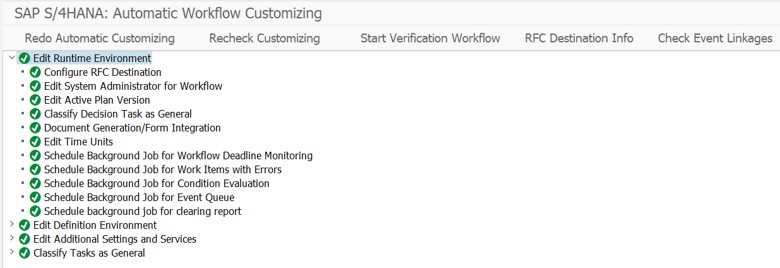
The process starts with Automatic Workflow Customizing. It ensures the required system settings for workflow are activated and configured correctly.
Actions:
- Go to Transaction SWU3.
- Ensure that Automatic Workflow Customizing is active.
- If you have used workflow functionality before (SAP Business Workflow or Flexible Workflow), check that all listed customizing activities have a green checkmark. If any are incomplete, click Redo Automatic Customizing or select the relevant activity and choose Execute Activity to complete the settings. It should look like this:
- If you haven’t used workflow functionality before, select Automatic Workflow Customizing to automatically complete the required configuration steps.
Step 2: Configure workflow scenario
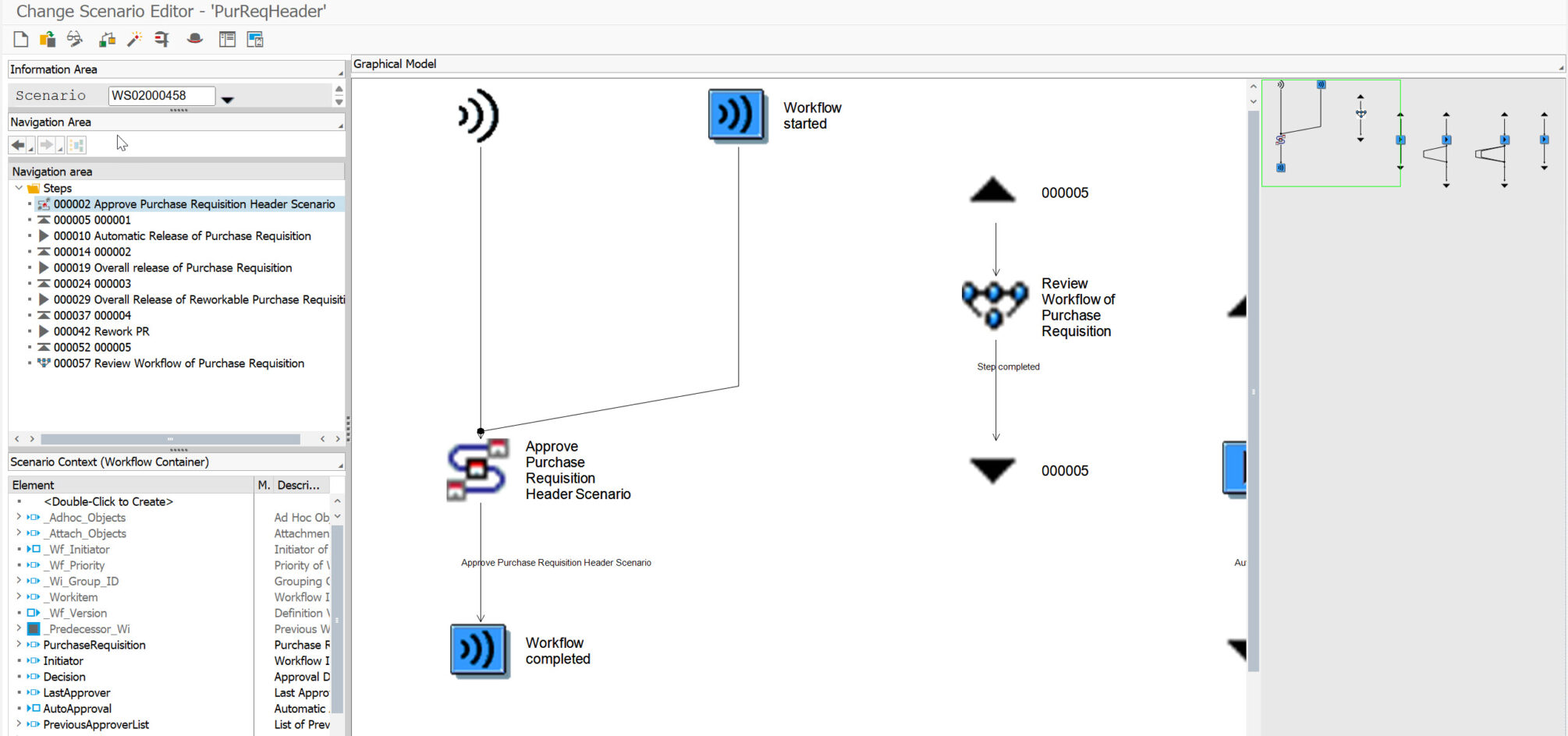
For purchase requisitions, the workflow scenario defines the approval process and provides the framework for setting up approval conditions, steps, and approvers.
You can maintain and activate workflow scenarios in the SWDD_SCENARIO transaction.
SAP provides a wide range of preconfigured workflow scenarios for various business documents and processes.
In our example, we will use the standard workflow scenario WS02000458 – Overall Release of Purchase Requisition.
Step 3: Activate flexible workflow scenarios
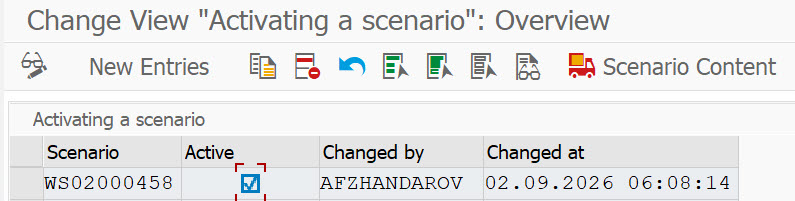
To activate the scenario, the user needs to add the workflow scenario IDs and activate it.
Actions: SPRO-> ABAP Platform-> Application Server -> Business Management -> SAP Business Workflow -> Flexible Workflow -> Scenario Activation
This is what it looks like:
Step 4: Define step names and decision options in My Inbox
My Inbox is a central SAP Fiori application where users view and process all workflow tasks assigned to them. In Flexible Workflow, My Inbox is the main workspace for approvers. When a document like a purchase requisition requires approval, the workflow task appears in their inbox. The user can open the task, review the information, and perform actions such as Approve, Reject, or Request Rework.
Actions:
- Go to SPRO-> ABAP Platform-> SAP Gateway Service Enablement -> Content -> Workflow Settings -> Maintain Task Names and Decision Options.
- Enter step names and decision options to be used in the My Inbox app.
- Repeat this for each step of the workflow scenario.

Step 5: Deactivate event type linkages for SAP Business Workflows
Deactivate workflows based on old scenarios. Find all records for BUS2105 and clear the field “Indicator showing whether event type linkage is activated.”
Where to do it: Transaction SWETYPV

Step 6: Generalize tasks and activate event type linkages for flexible workflow
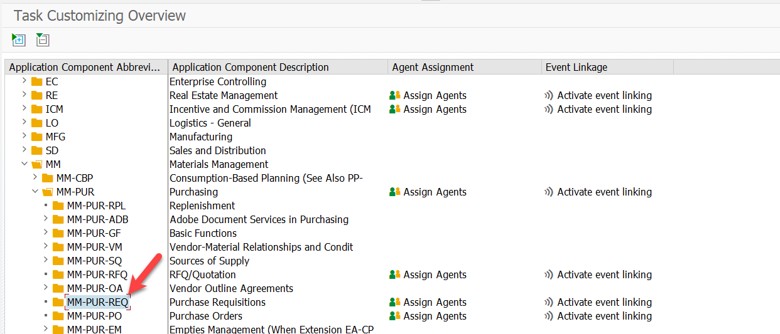
This step connects the workflow scenario with corresponding workflow tasks and system events. It ensures the system automatically triggers the workflow when the relevant business event occurs.
Actions:
- Make sure the required system events are linked to the relevant workflow scenario.
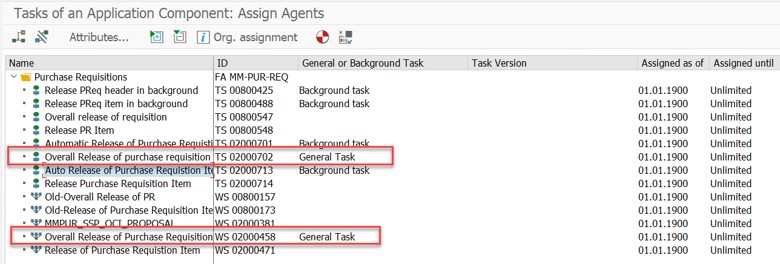
- Select Assign Agents.
- Select the standard task for the relevant business object. Workflow task IDs start with TS. Do not select a background task.
- Select Attributes and set the task as a General Task. This lets you assign the task to the appropriate workflow recipient.
- Leave the other settings unchanged and select Transfer.
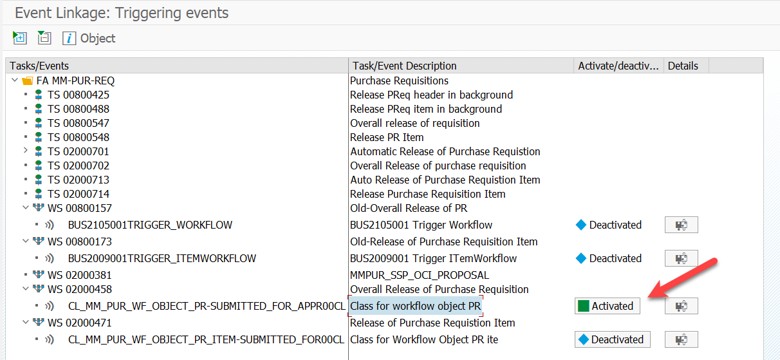
- Select Activate Event Linking.
- Select the workflow scenario for the relevant business object. Workflow scenario IDs start with WS.
- Expand the hierarchy to display the relevant event.
- Activate the event linkage.
Where to do it: SPRO → SAP NetWeaver → Application Server → Business Management → SAP Business Workflow → Perform Task-Specific Customizing
Step 7: Register gateway service for value
Flexible Workflow uses value helps when configuring workflow conditions and other settings. To make these value helps available, register the required OData service S_MMPURWORKFLOWVH_CDS.
Where to do it: Transaction /IWFND/MAINT_SERVICE

Step 8: Define document types for flexible workflow
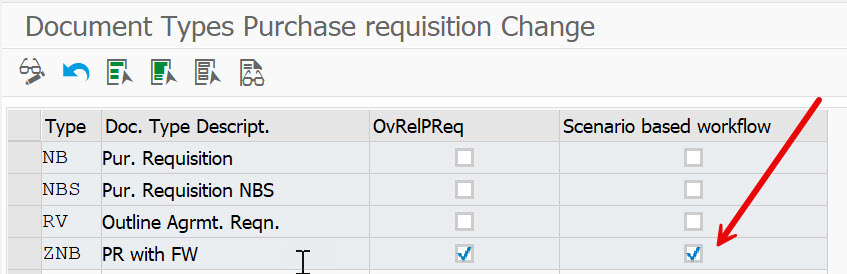
At this stage, you enable Flexible Workflow for the relevant purchase requisition document type.
Action:
- Activate Flexible Workflow for Purchase Requisitions for the required document type.
Where to do it: SPRO -> Materials Management -> Purchasing -> Purchase Requisition -> Flexible Workflow for Purchase Requisitions -> Activate Flexible Workflow for Purchase Requisitions
Warning: Once you activate Flexible Workflow for a purchase requisition document type, you must process PRs of this type using Flexible Workflow, either through manual or automatic release.
Business process approval configuration
As we know, here business users can configure the process independently in the SAP Fiori app «Manage Workflows for Purchase Requisitions» ID F2705.
Step 1: Create a new Flexible Workflow
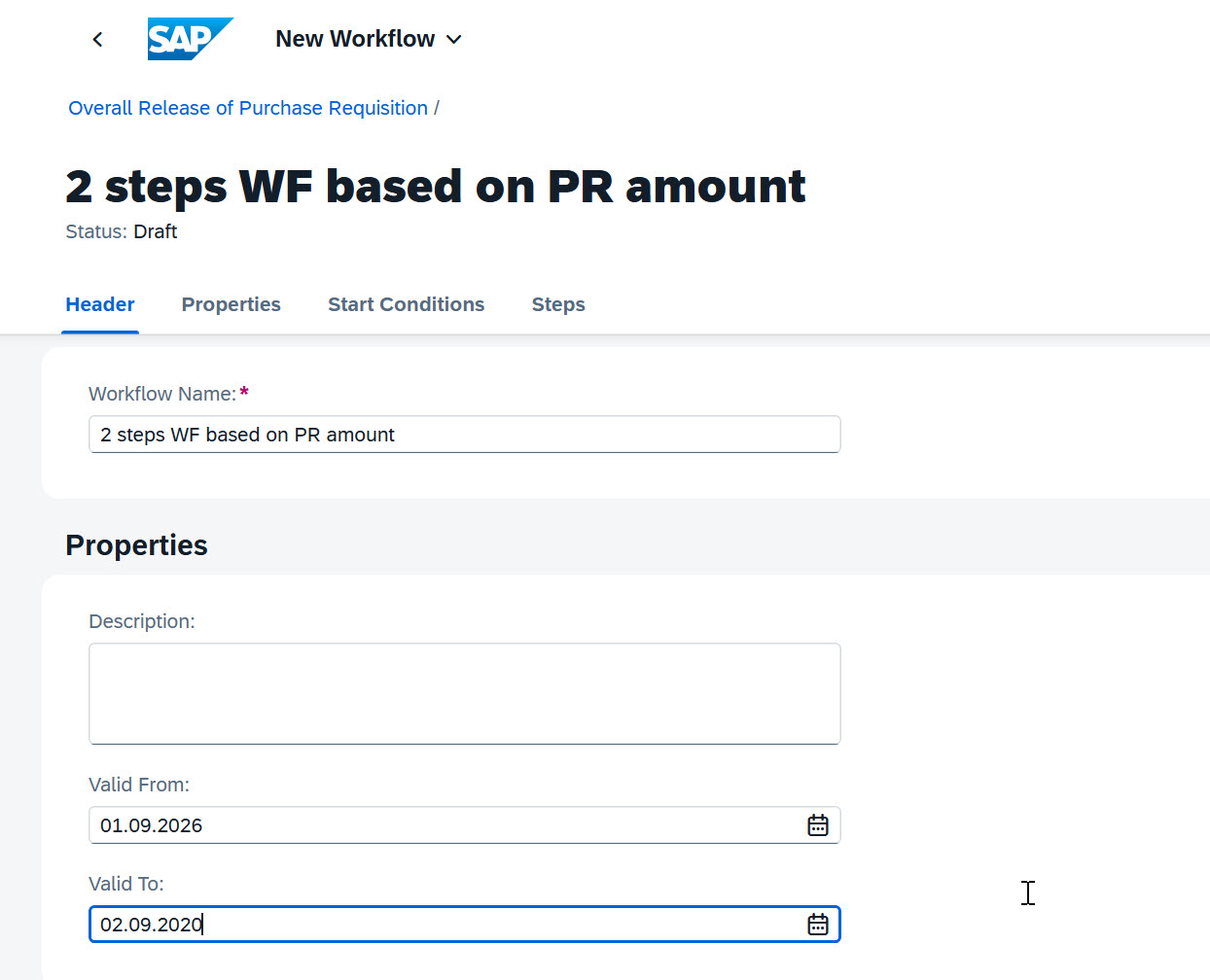
First, you create a new Flexible Workflow.

Next, enter a workflow name and specify its validity period.
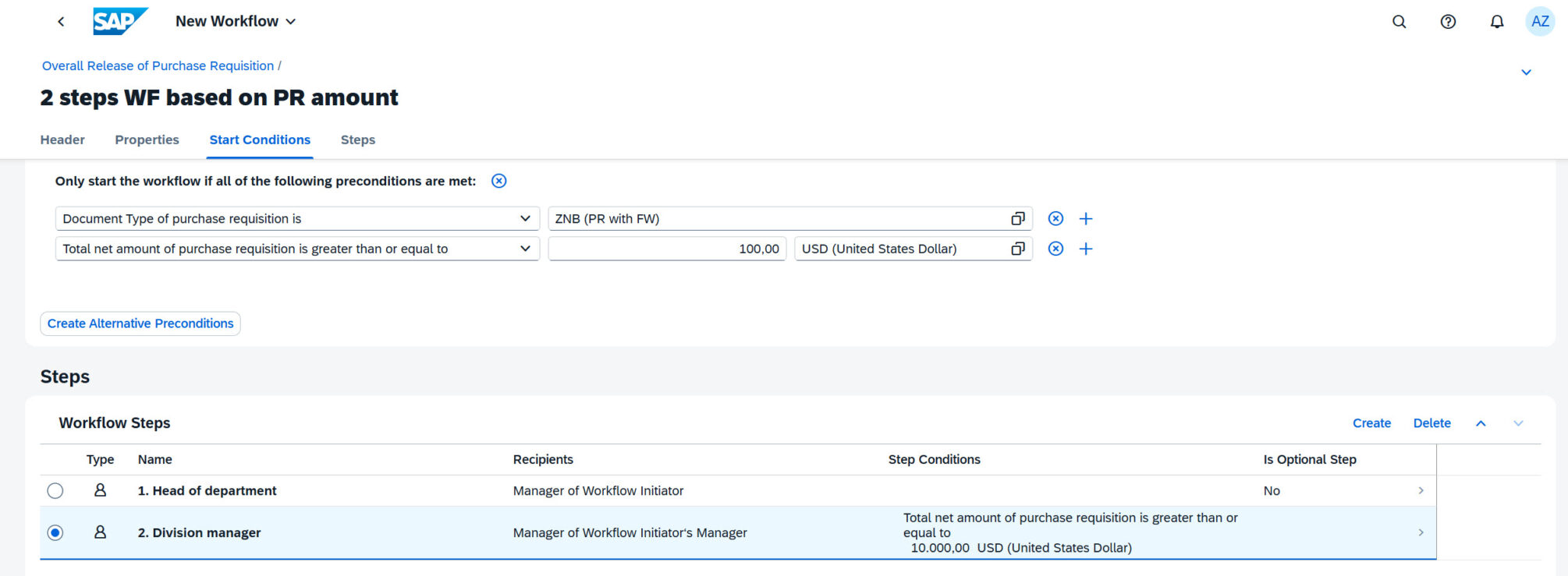
Step 2: Define the workflow start conditions
Define the conditions that determine when the workflow applies, such as the document type and request amount.

Step 3: Define the workflow steps
Define the workflow approval sequence: who needs to approve the request, when each approval step is triggered, and the order in which the steps are executed.
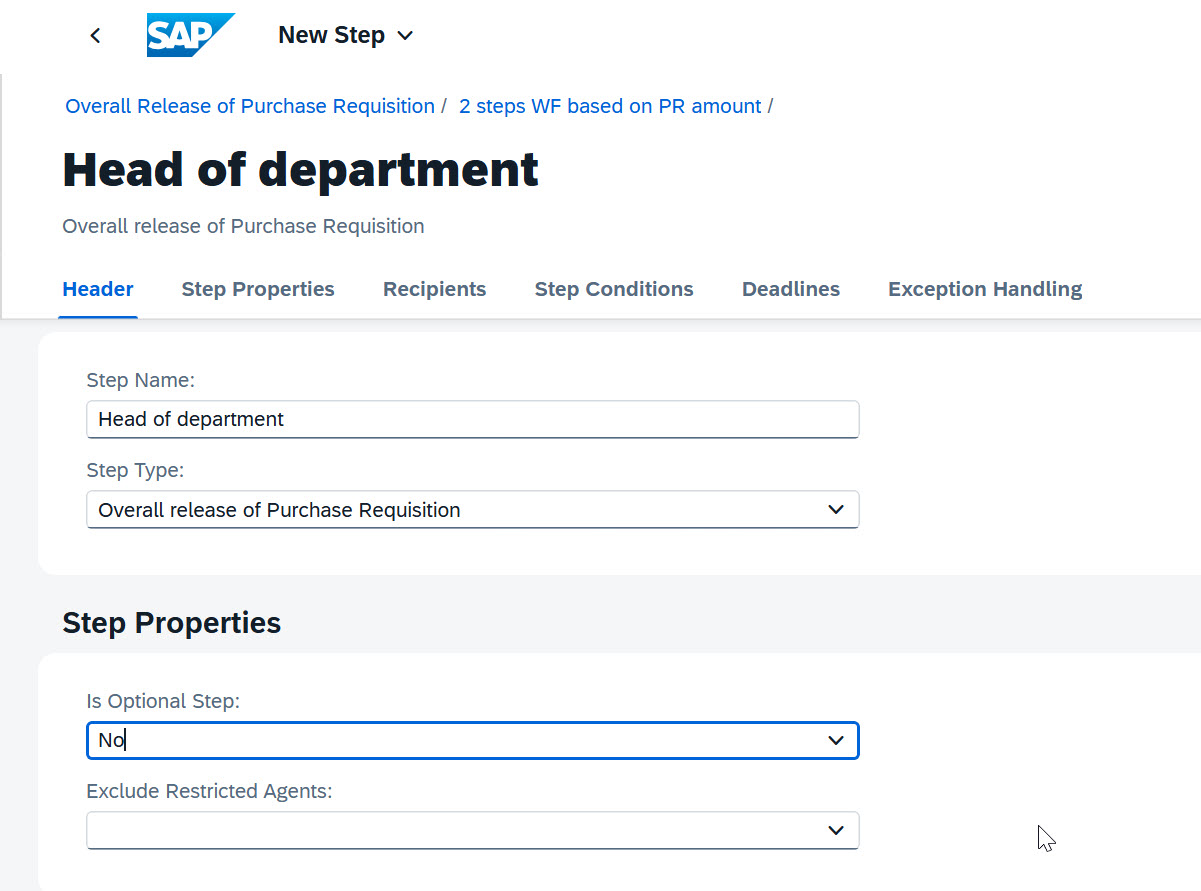
The first step can be, for example, the Head of Department approval.
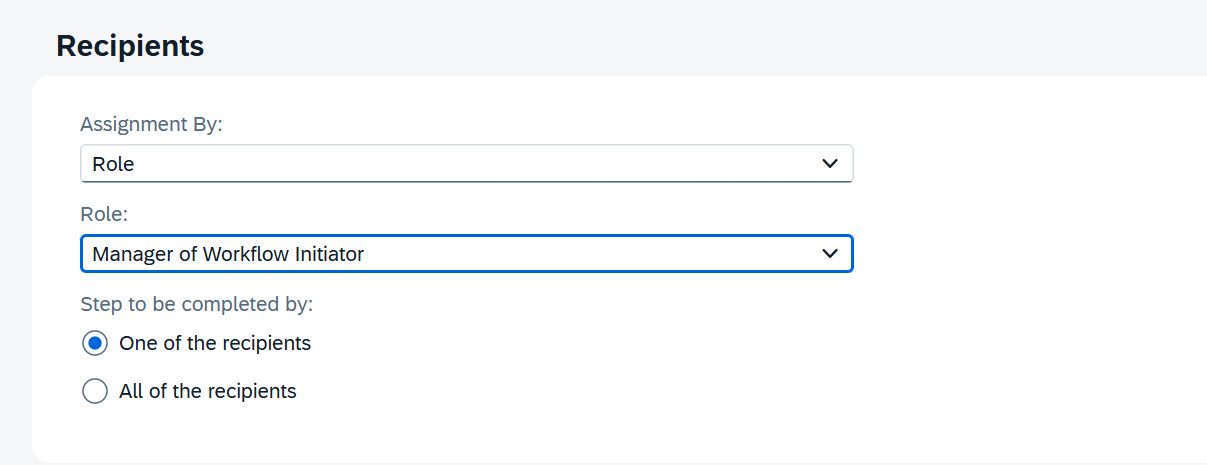
For each approval step, specify the recipients, the users responsible for approving the request. A recipient can be defined as a business user role or a specific user.
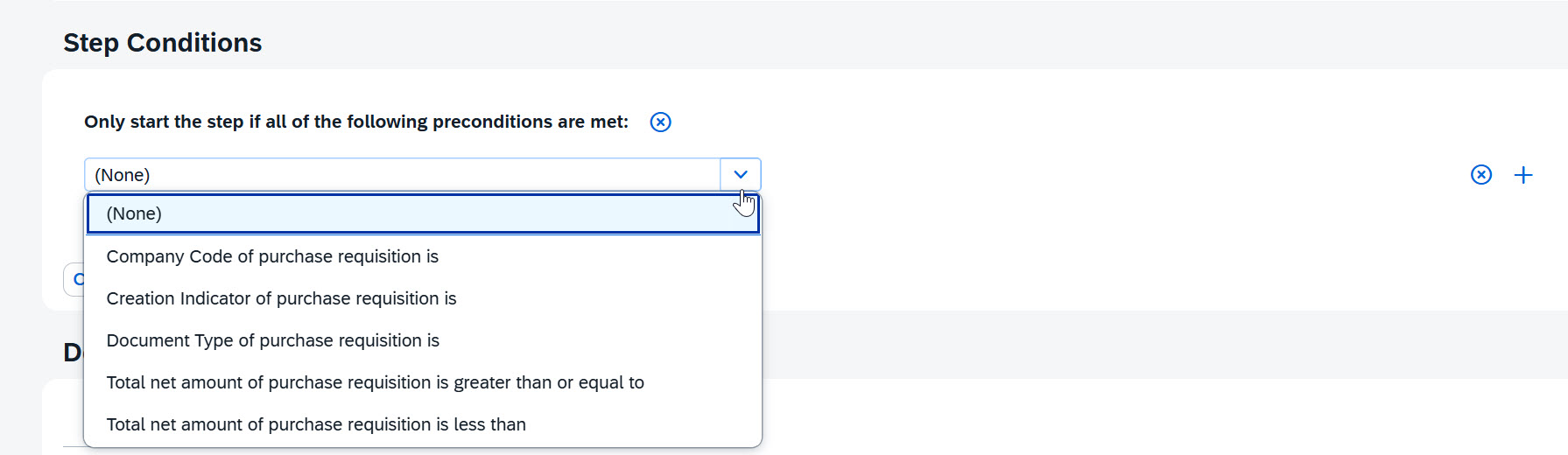
You can define conditions for each workflow step. A step condition determines whether the approval step runs for a particular request.
Example
The required approval process is:
- The manager must approve all requests.
- An additional approver must approve the request only if the request amount exceeds 10,000.
If the request amount is 8,000, the second approval step is skipped.
If the request amount is 15,000, the second approval step is executed.
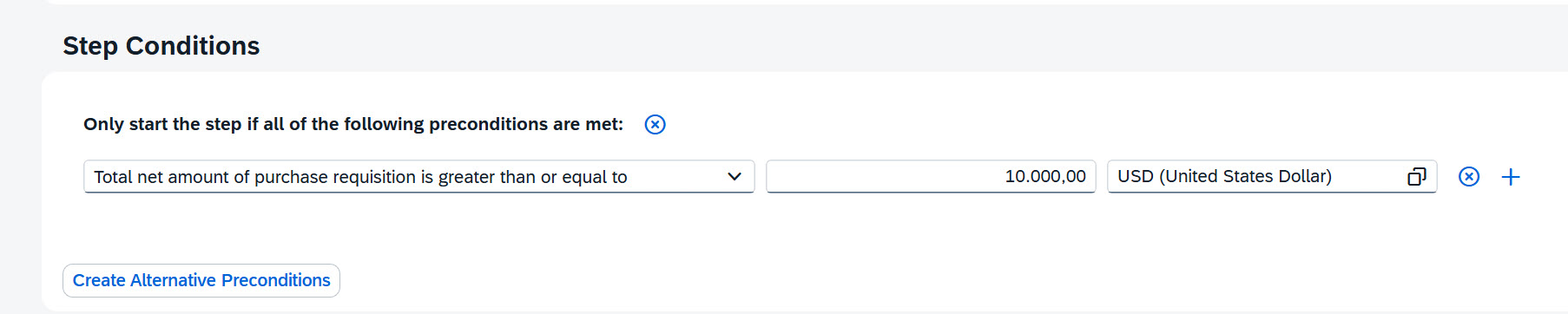
The configured workflow looks like this:
Step 4: Activate the workflow

Final workflow
After such configuration, we get the following workflow:
- PR created
- Start conditions
- Approvers assigned:
Amount ≤ €10,000? → Manager
Amount > €10,000? → Manager → Procurement Manager - Approved/Declined
Key benefits of Flexible Workflow
- Business-driven configuration: Business process specialists can configure workflows themselves without involving developers.
- Condition-based approvals: Approval steps can be triggered dynamically based on business rules and document attributes.
- Flexible approver determination: Assign approvers based on organizational roles, users, managers, teams, and other determination mechanisms.
- Fiori & my inbox: Approvers can review and approve documents through SAP Fiori My Inbox, providing a modern and user-friendly approval experience.
- Better transparency: Users can see approval status and details directly in relevant business applications.
- Reduced development effort: Many changes to approval logic can be implemented through configuration instead of custom workflow development.
- Easier maintenance: Standard SAP workflow scenarios are easier to maintain and generally provide better upgrade compatibility than heavily customized workflows.
Conclusion
Flexible Workflow in SAP S/4HANA allows you to configure document approval processes in a convenient and transparent way. Using the Purchase Requisition as an example, we examined how to set workflow start conditions, define the approval sequence, and assign responsible parties.
As a result, the approval process becomes clear to the business and easier to configure and modify as needed.

Subscribe